

Contents
About Chord Craft
Chord Craft is an app for iPhone, iPad, and Mac that allows you to view, edit, and share chord charts.
Adding Songs to Your Library
The free version of Chord Craft allows you to add four songs to your library. To add more songs you can purchase Chord Craft Pro!
Methods to Add Songs to your Library
- Using the Add Button
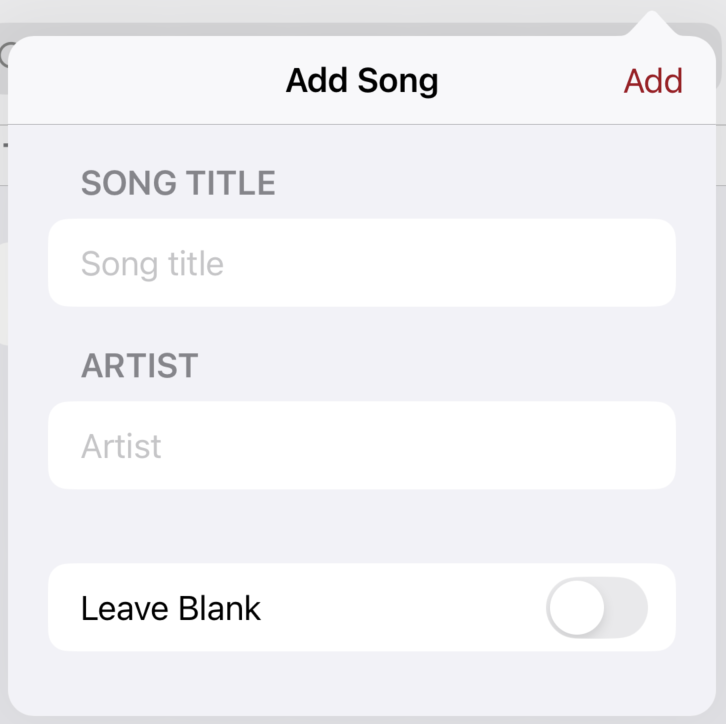
Press the add button on the main screen and enter the song title. The artist can then be selected from the drop down list or typed in. It helps to match the song title and artist as exactly as possible to maximize the chance of finding the correct song.
- Manual Entry
Press Add on the main screen and after entering the title and artist, select "Leave Blank". You can then enter your song in the song editor tab. The first line should always be the song's title. The second line should be the artist name (optional). If there is no artist, leave the second line blank. The third line through the end is the body content of the chord chart.
Section titles like "Verse 1" and "Chorus" should be typed on a line by themselves. They don't require any special formatting to be detected, but you can enclose them in brackets if you wish, like [Chorus]. If you want to include instructions on the same line as a section header you can do so, but you must enclose the line in brackets, like [Verse 1: build intensity throughout].
Brackets can also be used at the start and end of a line to indicate lines that only contain instructions. For example the line [build intensity throughout] will be treated as an instruction and suppressed from the lyrics page.
Example chord chart:
Amazing Grace <-- Title on 1st line John Newton <-- Artist on 2nd line (optional) Verse 1 <-- Section header (optional) G G7 C G Amazing Grace! (how sweet the sound) [build intensity throughout] <-- Instruction - Using Import
The Import button on the main screen can be used to import existing plain text (.txt) or ChordPro (.chopro) files. You can import individual files or Zip (.zip) files containing multiple songs.
Note: Formatted text documents (.docx) or PDF files (.pdf) cannot be imported since the alignment of the chords in those documents is not determinate. To use content from these formats, either copy and paste it in the song editor or save it as a plain text (.txt) file first.Tip: For worship leaders: ChordPro files can be downloaded from SongSelect, making it a useful resource for songs that aren't found through the regular "Add" song process. - iCloud Drive
You can directly place songs in plain text (.txt) or ChordPro (.chopro) format into the "iCloud Drive" → "Chord Craft" folder. These songs will be imported automatically when you next launch the Chord Craft app.
Since iCloud Drive syncs between devices, you can add songs on your Mac and they will appear in Chord Craft on your iPhone/iPad automatically.
Deleting Songs
To delete a song from your library:
- Swipe from right to left on the song's row in the song list
- Press the trash button that appears to confirm deletion
Chord Chart View
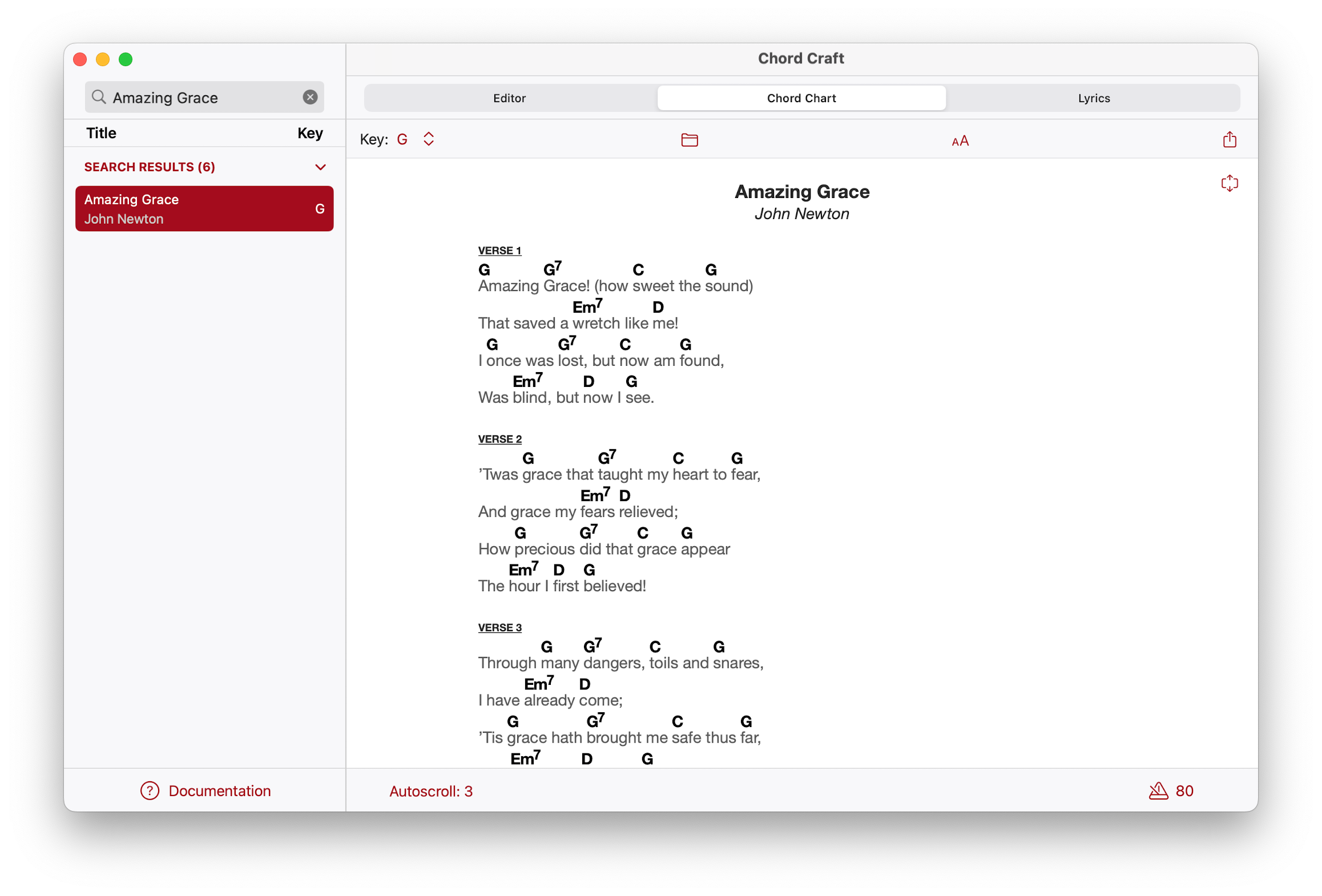
The chord chart tab displays the fully formatted chart. A key feature of Chord Craft is that charts are line-wrapped to fit on the narrow width of your iPhone, eliminating the need to zoom out or scroll horizontally.
By default, Chord Craft uses real musical symbols for flats (♭) and sharps (♯), and displays appropriate parts of chord quality (like 7, add9, maj9) in superscript.
Fonts and Chord Alignment
Chord Craft solves a common problem with chord charts: imprecise alignment between chords and lyrics. While most apps resort to using fixed-width fonts like Courier New, Chord Craft intelligently formats your charts to achieve both precise alignment and beautiful variable-width fonts!
Formatting
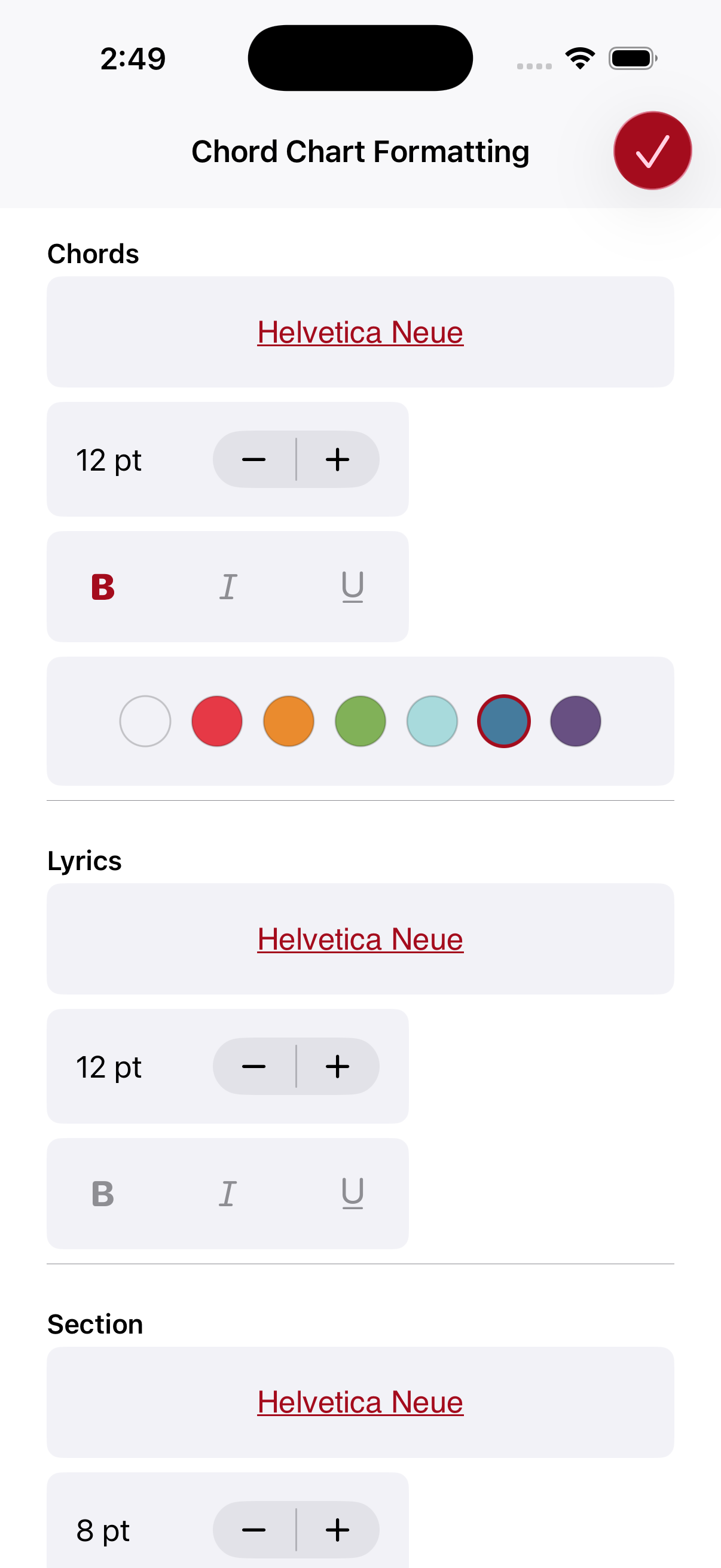
Customize the style of your charts with any font, size, and style you choose. You can set different styles for:
- Chords
- Lyrics
- Song sections
- Title
- Artist
- Copyright information
Transposing Songs
Chord Craft detects the key of each song and allows you to transpose it to any key to make it more singable or easier to play on guitar.
To fix an incorrectly detected key:
- Go to the Song Editor tab
- Select the correct Written Key from the dropdown list in the bottom left corner
- Return to the Chord Chart tab to transpose from the correct original key
Capo Settings
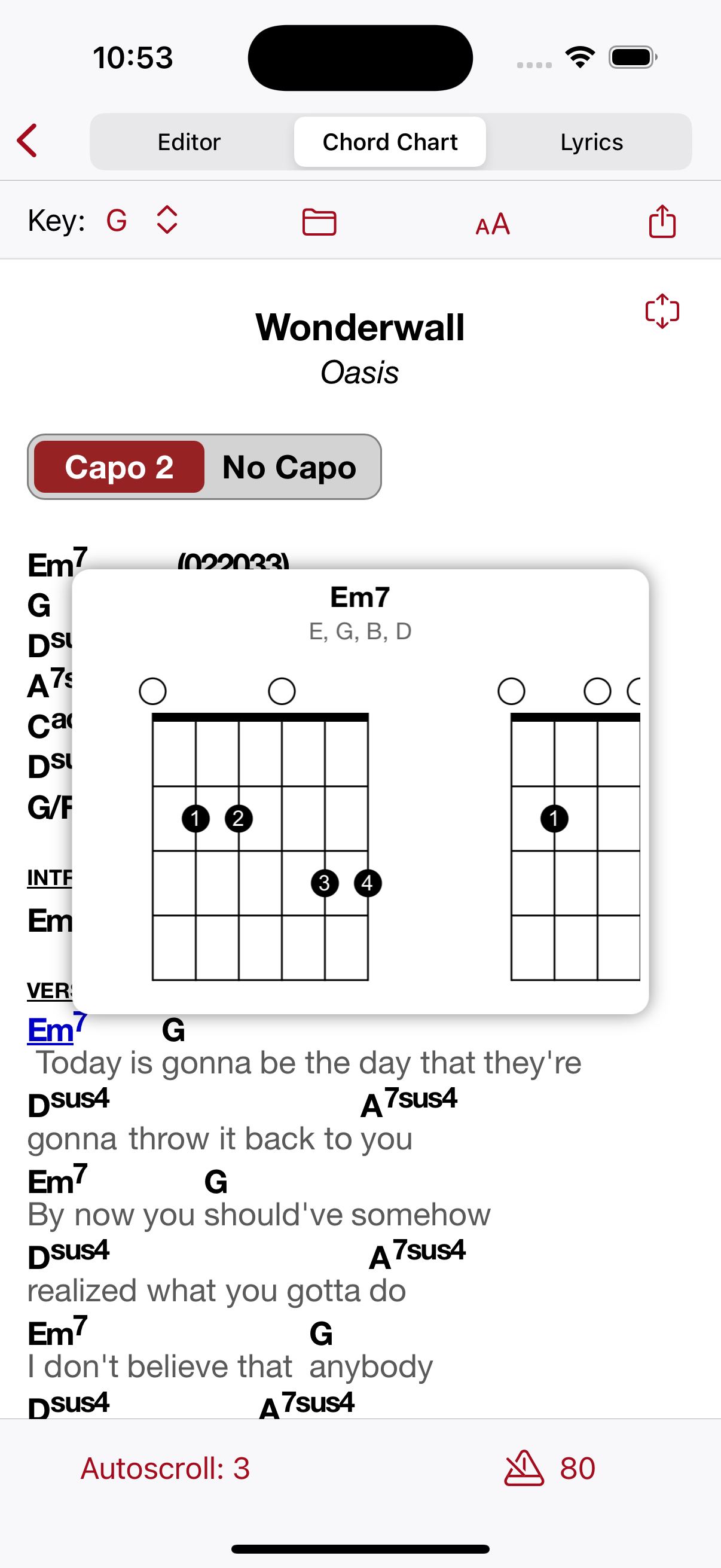
For songs with a capo line (like "Capo II"), Chord Craft provides a selector to switch between using a capo or no capo. This is especially useful when playing with instruments like bass guitar or piano that don't use a capo.
When you share charts that use a capo to your user page, the capo/no capo feature is preserved, allowing recipients to switch views just as easily.
Autoscroll
Autoscroll automatically moves the chart as you play, eliminating the need to manually scroll. Features include:
- Initial delay before scrolling begins
- Five adjustable speeds (1-5)
- Plus/minus buttons for speed adjustment while playing
Metronome
The built-in metronome remembers your preferred tempo for each song, ensuring consistent timing every time you play. Use it to:
- Start songs at the right tempo
- Practice with precise timing
- Maintain consistent speeds across performances
Full Screen Mode
Full screen mode hides the top and bottom bars to give the chart the whole screen. While in full screen you can still turn autoscroll on or off.
- Tap on the full screen button in the top right corner to enter (or exit) full screen mode
- Double-tap anywhere on the chart to enter (or exit) full screen mode.
- Swipe left or right on the chart to move between songs in your list.
Guitar Chord Diagrams
Tap any chord to see guitar fingering diagrams showing how to play the chord in many different voicings and positions. Each diagram shows:
- Finger positions (1=index, 2=middle, 3=ring, 4=pinkie, T=thumb)
- Complete chord spelling (e.g., Em9: E, G, B, D, F#)
- Multiple voicing options (scroll horizontally to view more)
Sharing Options
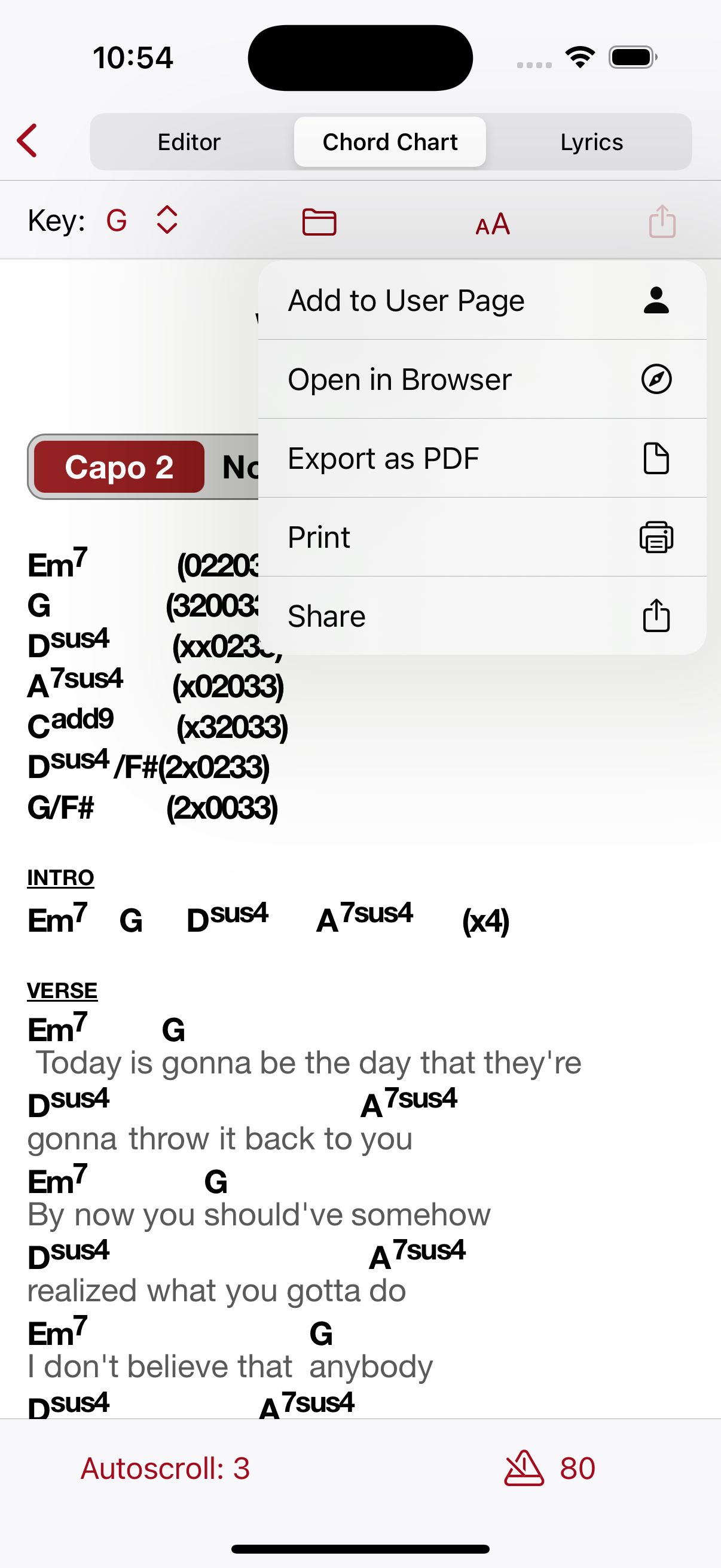
Add to User Page
Share your charts or lyrics instantly with others using your personal user page (like chordcraft.net/johndoe). This is perfect for:
- Quickly sharing chords with anyone you're playing with, even when you don't have their contact information
- Providing quick access to lyrics for singers
Other Sharing Options
- Open in Browser: Share a single song via a public web page without adding it to your user page
- Share: Send a song URL via Messages, Email, or other apps
- Export as PDF: Generate a paper-sized PDF suitable for printing
- Print: Print directly to a printer
Set Lists
You can add songs to a set list (or create a new set list) on the Chord Chart tab by pressing the folder button.
Set lists are displayed on the main screen and enable you to:
- Organize songs for specific events or performances
- Play through multiple songs in sequence
- Share entire sets with your band members
- Print or export multiple songs at once
Song Editor
The Song Editor tab allows you to edit existing charts or create new ones from scratch. It's designed to make editing as efficient as possible, even on a mobile device.
Helpful Features
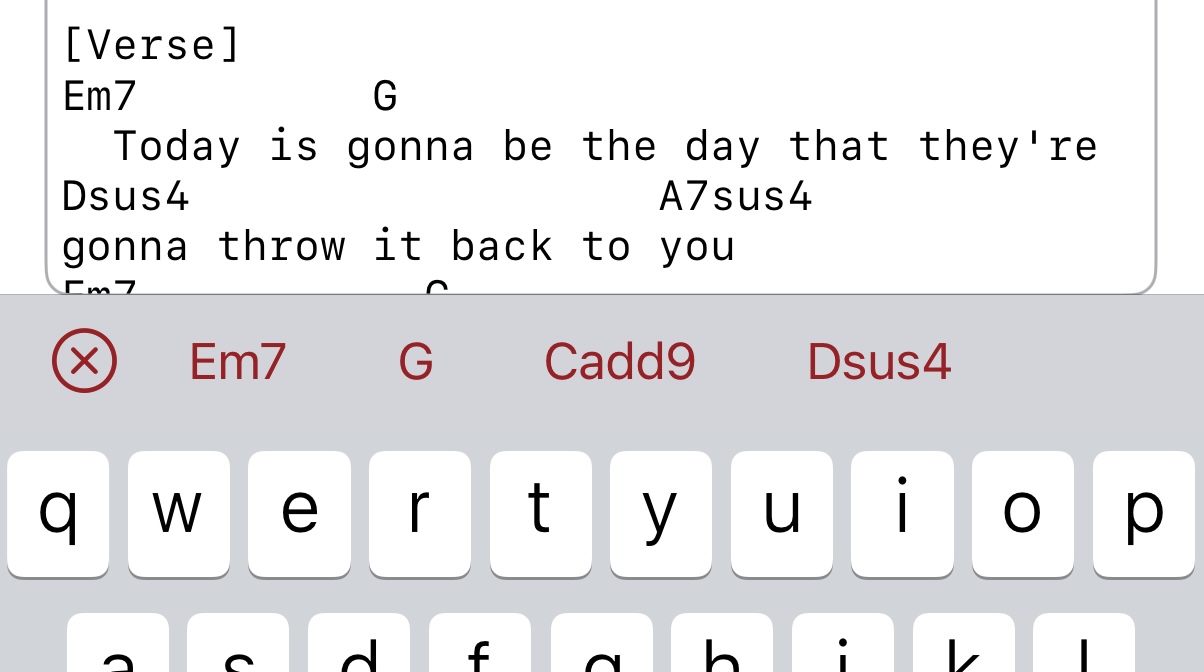
- Quick Chords
The toolbar above the keyboard shows commonly used chords from your chart. Tap any chord to insert it at the cursor position. The list updates automatically when you open the editor.
- Smart Chord Placement
When you add or modify a chord, Chord Craft preserves the alignment of subsequent chords on that line, eliminating the need for manual realignment.
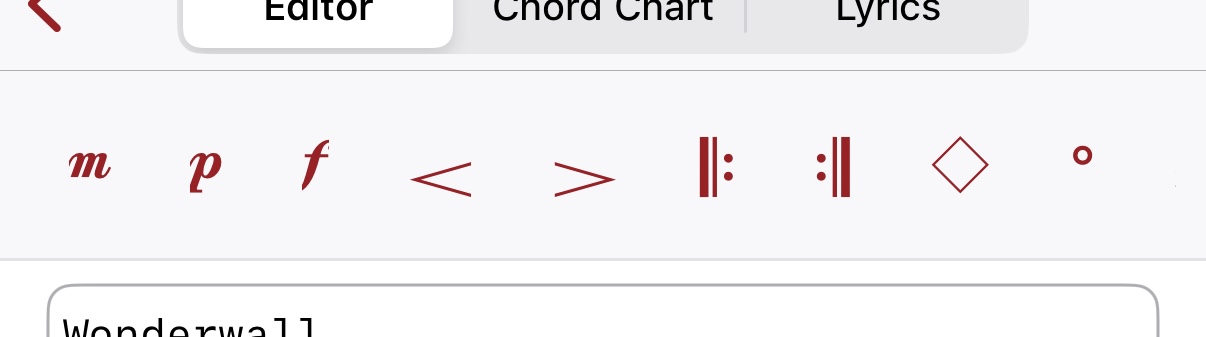
- Musical Symbols
The toolbar provides quick access to common musical symbols to insert them into your chart:
- Dynamics: piano, forte, mezzo, crescendo, decrescendo
- Structure: repeat, diamond (play and hold)
- Chord qualities: diminished, half diminished
- Time signatures: cut time
- Notes: eighth, quarter, half, whole
- Instruments: drums, piano, guitar, vocals
Lyrics View
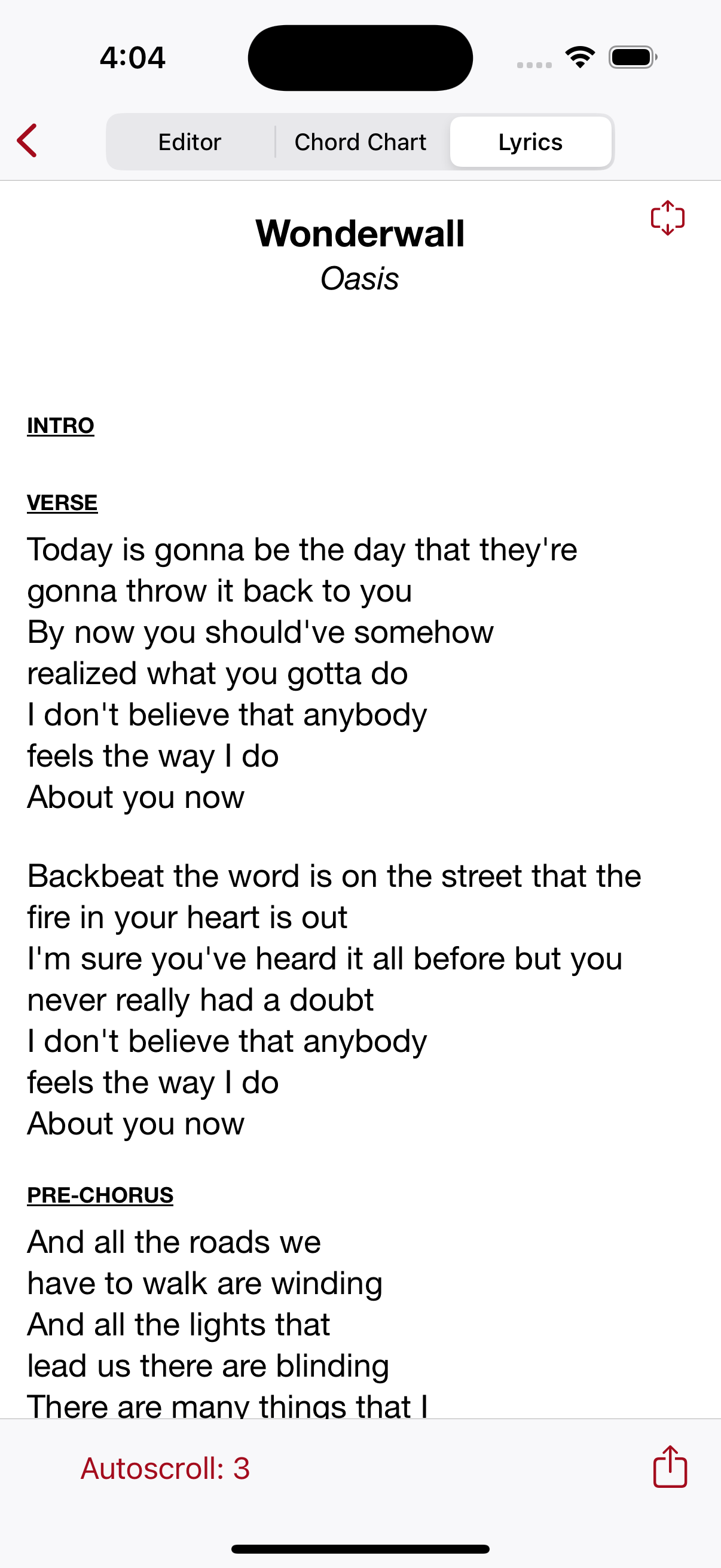
The Lyrics tab provides a simplified view perfect for vocalists or musicians who just need the words. Features include:
- Automatically generated from your chord chart
- Always in sync with chord chart changes
- Autoscroll support
- Full screen mode
- Create Slides — creates a Google Slides presentation of the lyrics. Google Slides also lets you export the presentation to Microsoft PowerPoint if you prefer that.
- Same sharing options as chord charts
Song List Management
The main screen displays all your songs and set lists in one organized view. Each song entry shows:
- Song Title
- Artist Name
- Key Information: shows both guitar key and audible key when using a capo
- Example:
 means the song is played in the key of D with capo 2, but sounds audibly in the key of E.
- Example:
Pressing and holding on a song (long-press) will allow you to add it to a set list or remove it from a set list.
Set List Features
You can re-order the songs in a set by pressing and holding on a song and then moving it up or down.
Next to each set list on the main screen is a '...' button that allows you to perform the following operations on the entire set list:
- Add entire set lists to your User Page
- Export entire set list as PDF, including any sheet music attachments
- Print entire set list
- Create Slides — creates a Google Slides presentation of all the lyrics in the set. Google Slides also lets you export the presentation to Microsoft PowerPoint if you prefer that.
Search Capabilities
Song search can match any part of a song including:
- Song title
- Artist name
- Lyrics or chord content
- Key-specific searches:
- Use "key:D" to find songs that are played in the key of D
- Use "ear:D" to find songs that sound audibly in the key of D (when a capo is specified)
- You can place quotation marks around multiple words if you'd like to match them together. For example "my life" with surrounding quotation marks will only match songs that contain both words next to each other in that order. Without the quotation marks matches will be returned that contain the word "my" and the word "life" but the words don't have to appear next to each other.
- Exclude terms by prefixing them with a minus sign: -pizza
Settings
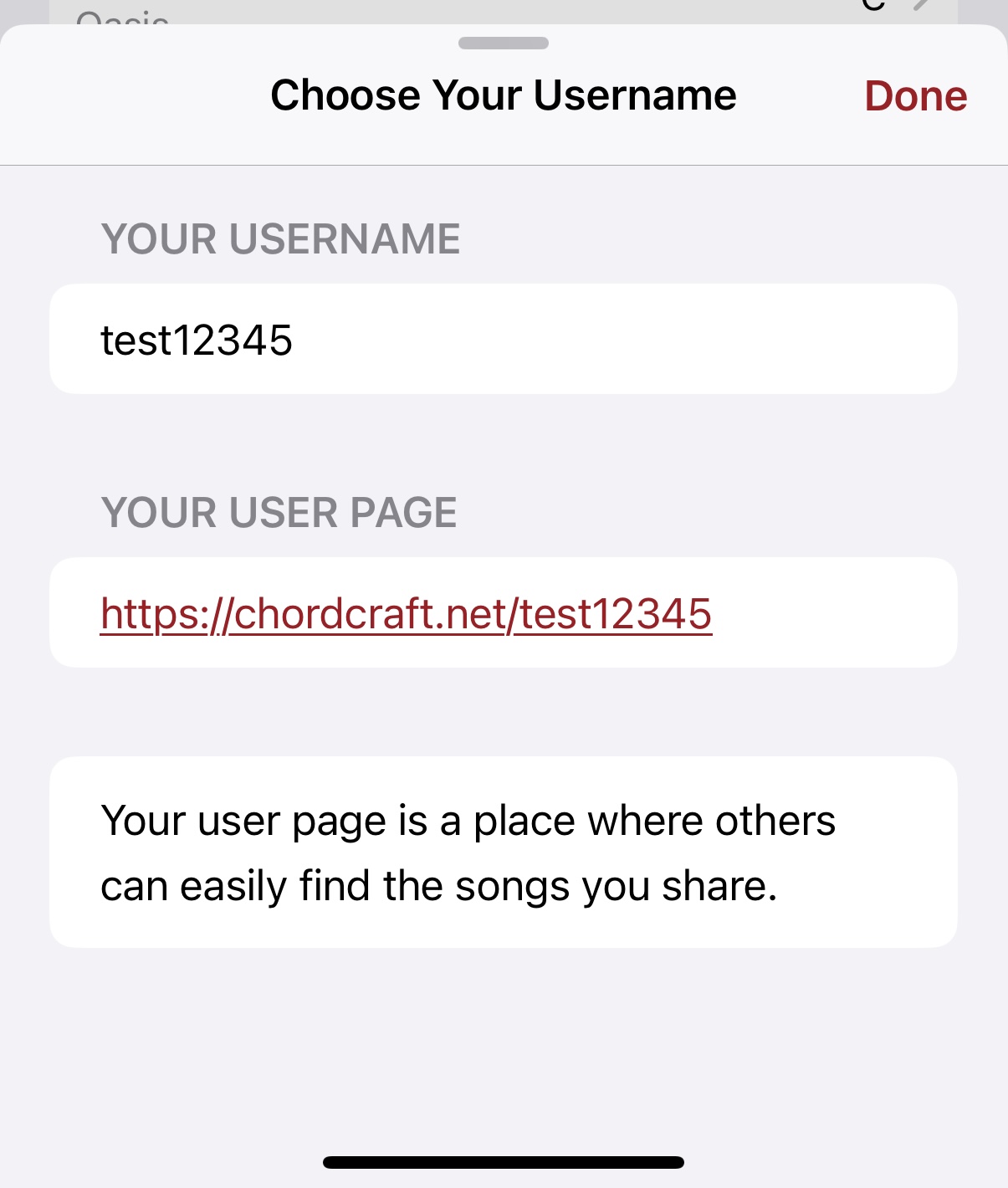
The settings button lets you define your username which determines the short URL that will be used for your user page, like "chordcraft.net/billyjoel". This is a web page where you can share your chord charts so that others can play along with you.
- Usernames must be at least 5 characters along.
- Choose a short name that will be easily typed and understood by the people you want to share with.
- You can change your username later too, so you aren't locked into a single username forever.
Preferred Song Format
The Preferred Song Format setting determines the default file type that is retrieved and used when you add a new song to your songbook.
The available options are:
Songs will be displayed with chord symbols above the lyrics. This format shows the chord progression using chord names (like C, Am, F, G) positioned above the corresponding lyrics.
- Best for: Rhythm guitar, piano, and general accompaniment
- Shows: Chord progressions and song structure
- Ideal for: Singers and rhythm players
Songs will be displayed as guitar tablature, showing the exact fret positions for playing the song on guitar. Tablature uses numbers on six lines representing the guitar strings.
- Best for: Lead guitar and specific fingerpicking patterns
- Shows: Exact fret positions and note sequences
- Ideal for: Guitar players learning specific arrangements
How It Works:
When you add a new song to your songbook:
- The app will first look for songs in your preferred format
- If available, it will retrieve and display the song in that format
- This setting applies to newly added songs - existing songs retain their current format
You can change this preference at any time in the Settings screen. The new preference will apply to songs added after the change is made.
Tools
Chord Craft includes several standalone tools accessible from the main screen Tools drawer, or from the main main button.
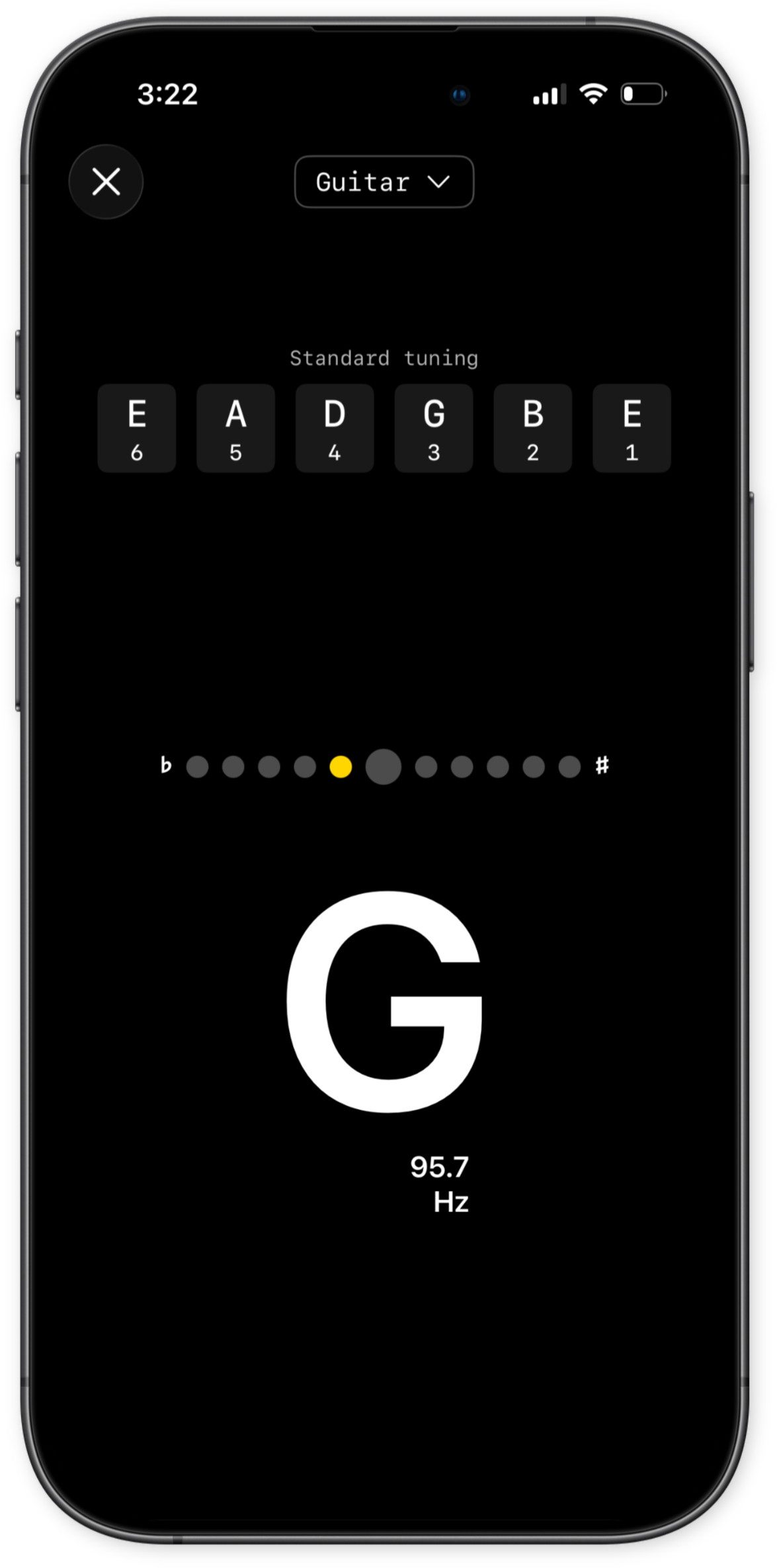
Tuner
The built-in tuner lets you tune your guitar, ukulele, or other instrument without leaving the app. It uses your device's microphone to detect the pitch of each string and shows whether you are flat, in tune, or sharp. Tap each string in turn to get more feedback on that specific pitch.
Chord Dictionary
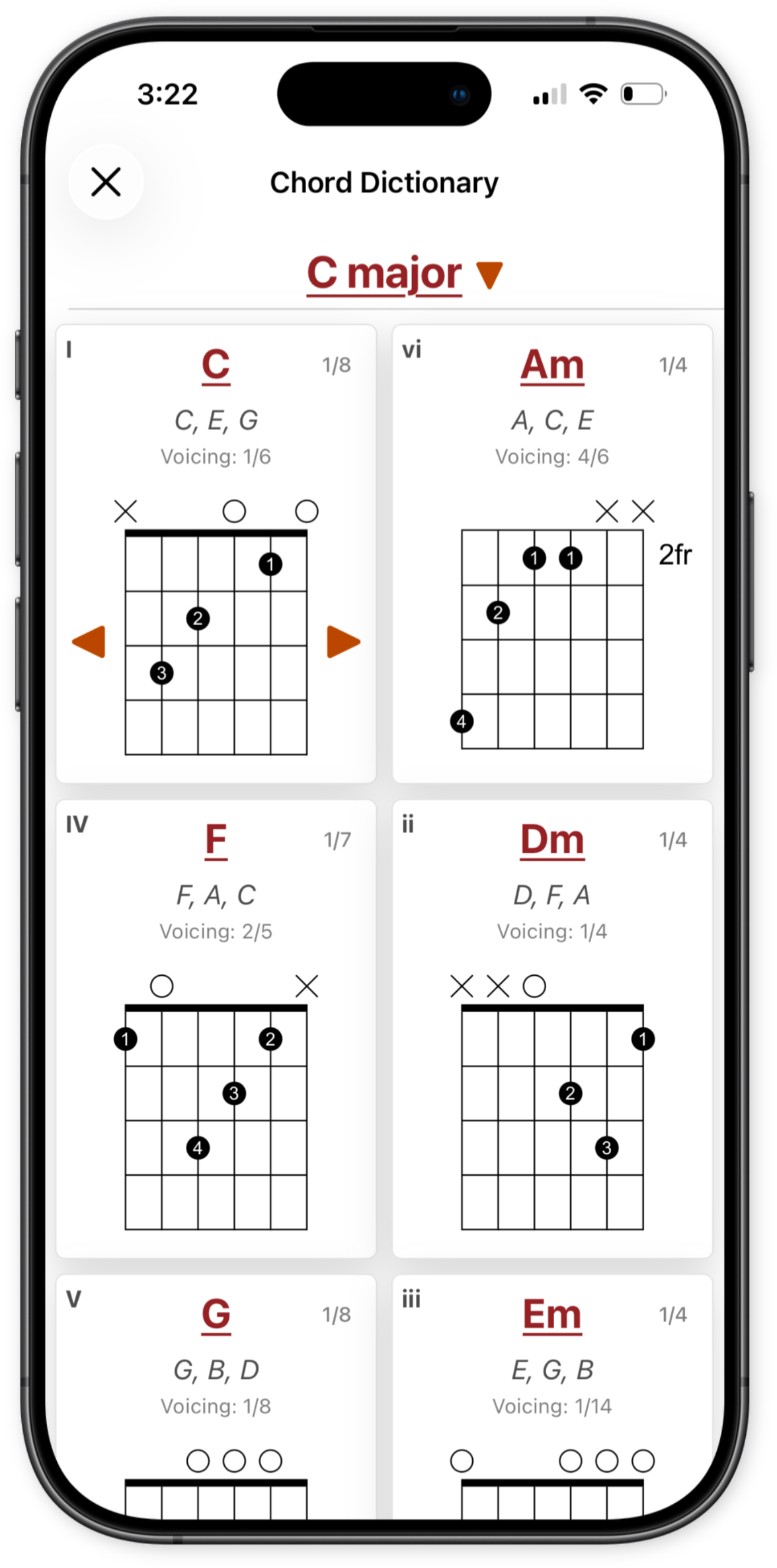
The Chord Dictionary lets you look up fingering diagrams for any chord. Browse chords by name to see all available voicings and positions, even when you don't have a song open.
- Tap the chord name to see variations of the chordlike 7s, inversions, etc.
- Supports guitar, ukulele, bass, mandolin, and banjo
- Shows finger positions and complete chord spellings
- Tap the right and left arrows to browse multiple voicings
Chord Identifier
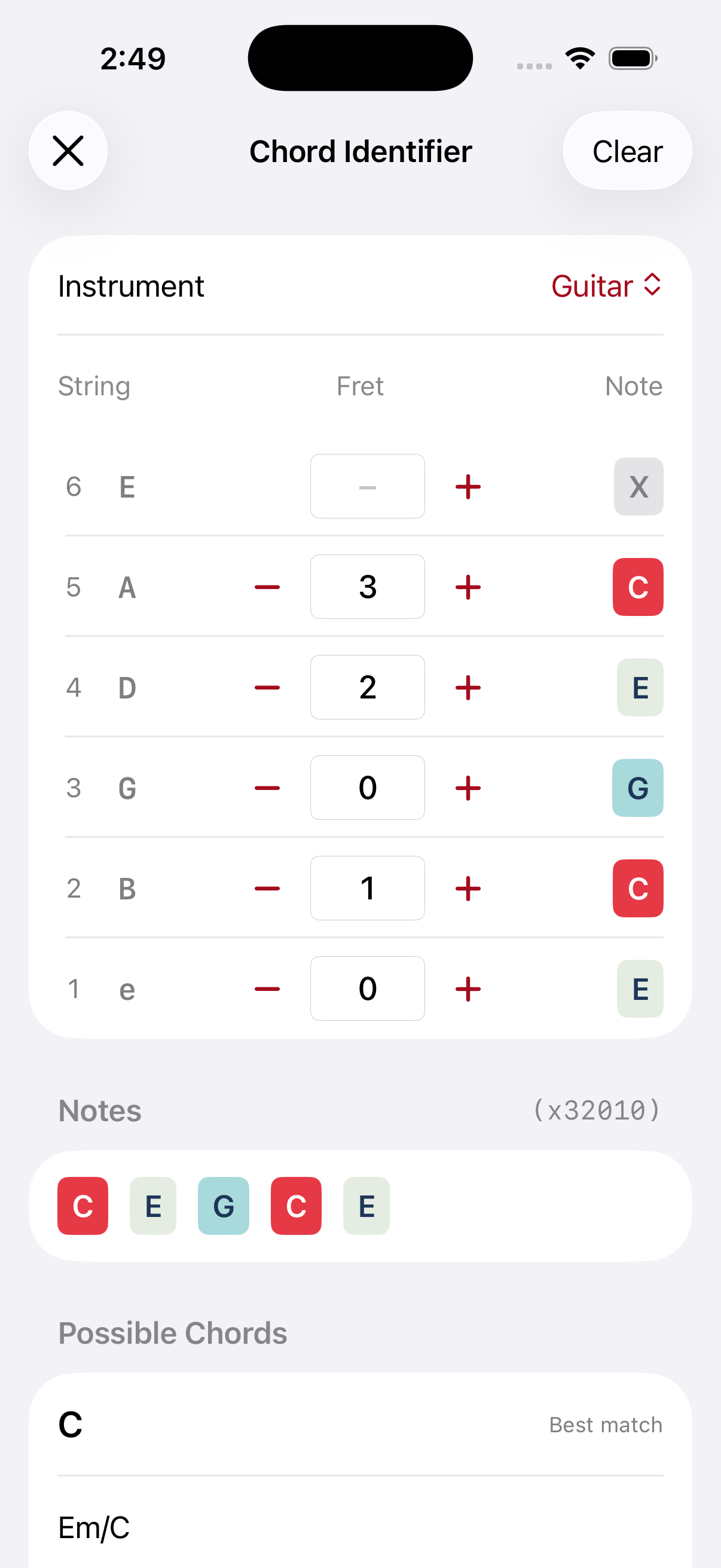
The Chord Identifier lets you figure out the name of any chord you're playing. Open it by tapping the Chord Identifier button in the Tools drawer on the main screen.
- Identifies chords based on the notes you're playing anywhere on the fretboard
- Shows the most likely chord name plus alternatives
FAQ
All my songs are missing, what happened to them? #
It is highly unlikely that you have lost your songs.
- Make sure you are signed into iCloud with the same account you were using before.
- Make sure iCloud Drive is enabled under Settings → Your Name → iCloud → Drive → Sync this Phone, and Chord Craft is listed under Apps Syncing to iCloud Drive.
- It helps to have some available storage space on your phone because when your phone is low on storage Apple will sometimes offload iCloud files to save space. You can check that under Settings → General → Storage.
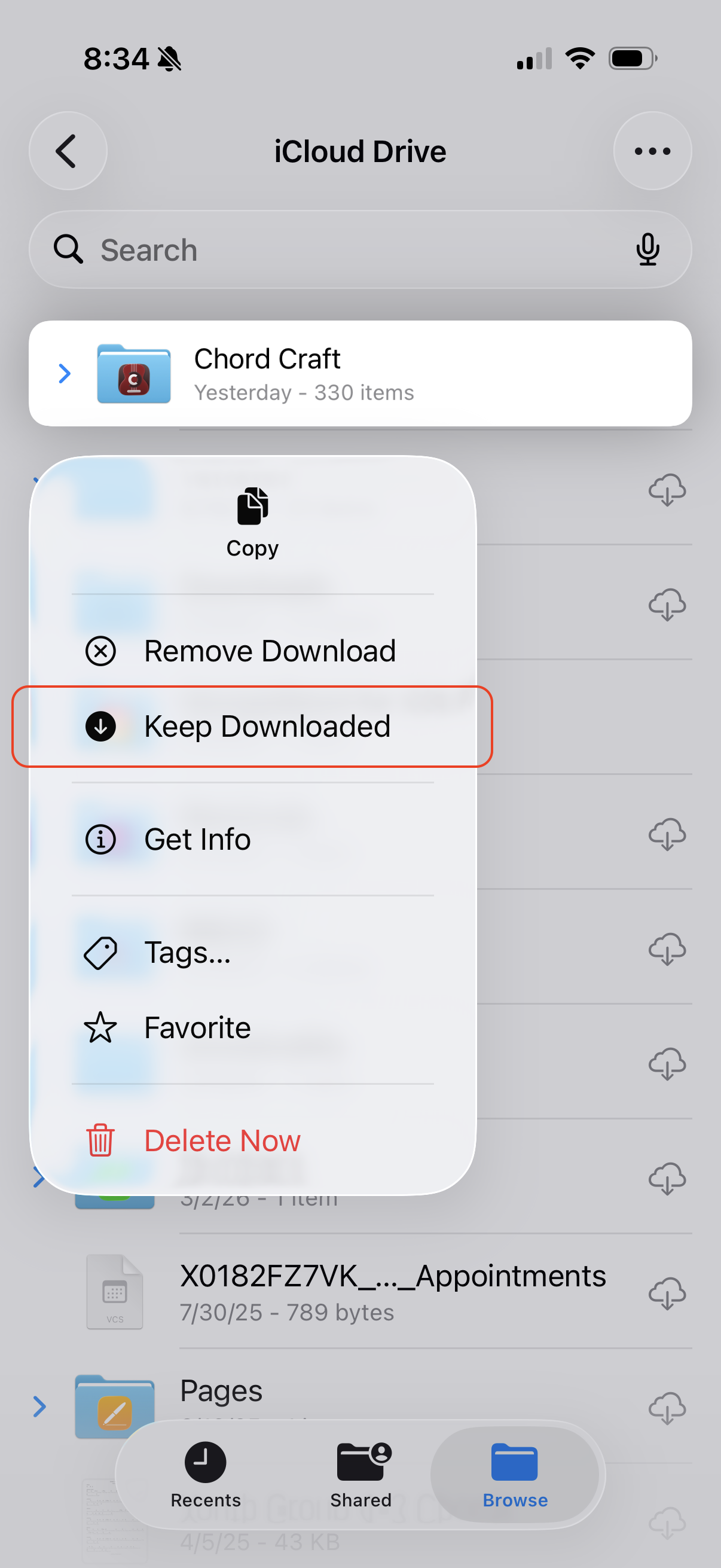
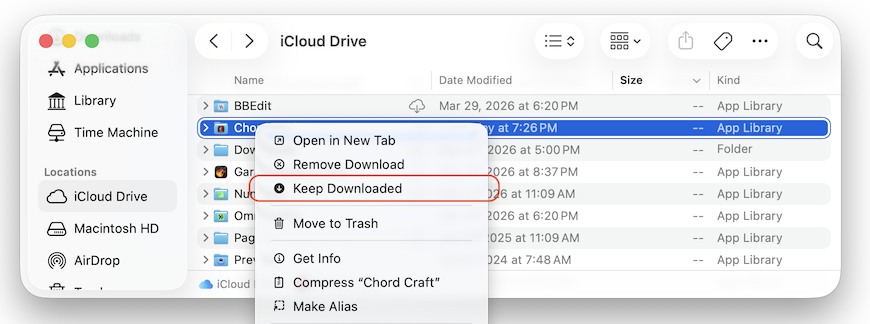
If the files have been offloaded, they will still appear in the app if you just wait for a minute for the app to download them again. Patience is key! - You can avoid having these files offloaded (and keep them always on your device) by following these steps:
- iOS — In the Files app go to Browse → iCloud Drive → Chord Craft. Long press the Chord Craft folder and select "Keep Downloaded".
- Mac — In the Finder go to iCloud Drive → Chord Craft. Right-click on the Chord Craft folder and select "Keep Downloaded".
- iOS — In the Files app go to Browse → iCloud Drive → Chord Craft. Long press the Chord Craft folder and select "Keep Downloaded".
I paid for a subscription but it says I'm not subscribed and it wants me to pay again #
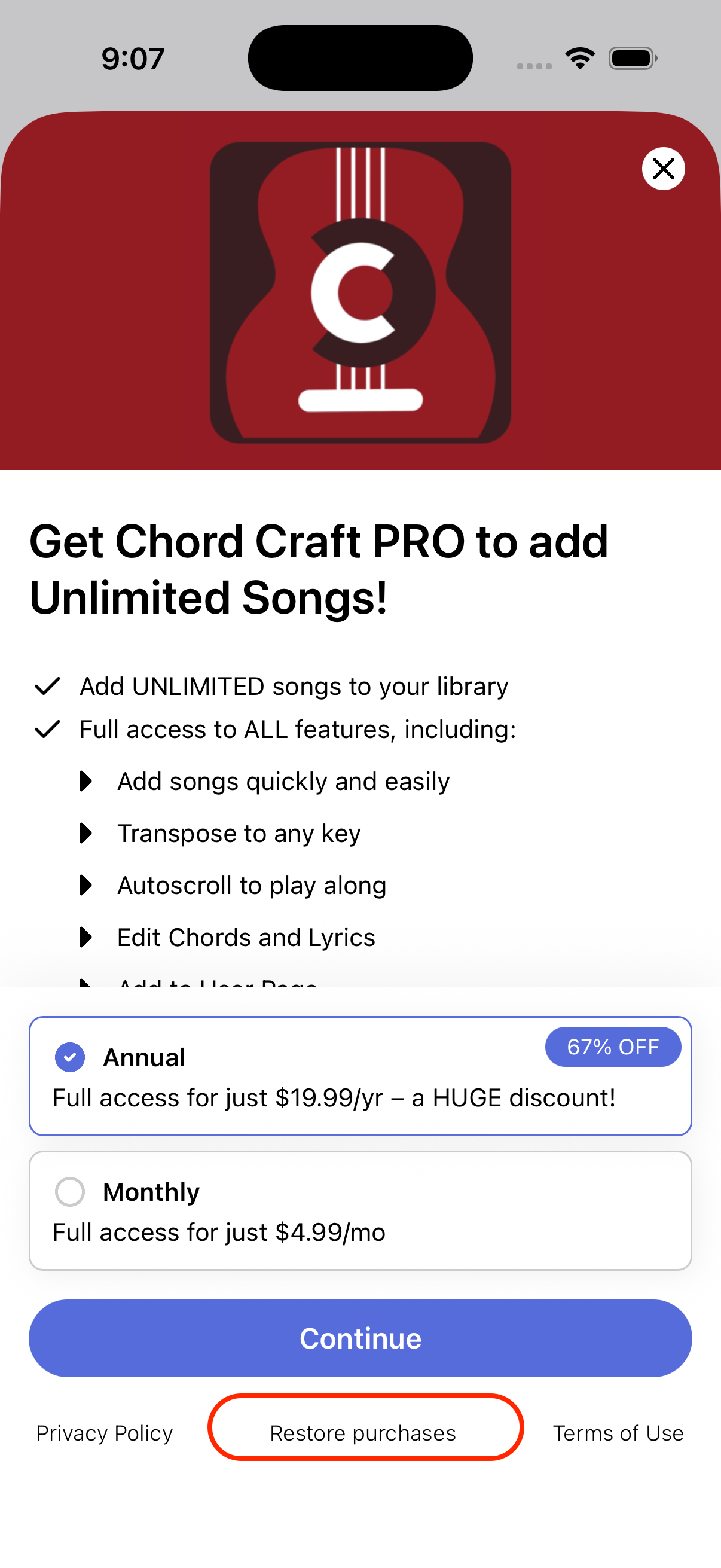
On the main screen there will be a button that says "Get Pro" in the lower left corner if the app doesn't currently know about your subscription. If you press it, on the next screen there is a button near the bottom that says "Restore Purchases" that you can use to activate a previous subscription if you have one.
Apple will not let you pay for the same subscription twice (as long as you are logged into the same Apple ID email) so you don't need to worry about being double charged.
You can view your current app subscriptions in the Settings app, under Settings → Your Name → Subscriptions → Chord Craft.